Getting started
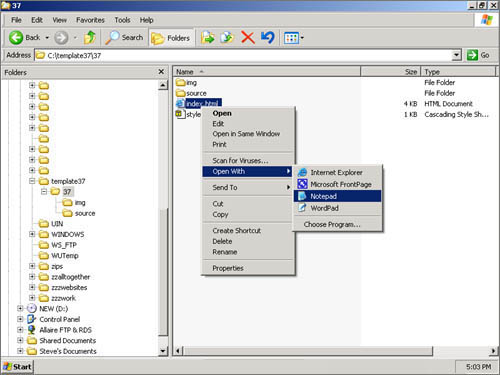
This page is for reference, no editing or steps are required. You may want to print this page. What is described here is referenced often throughout this guide. First things first, you must understand the templates layout. The template can be viewed by double clicking on the index.html. To edit the template you can right click the index.html file, highlight open with, and click notepad. This will open the source code (index.html) and will allow you to edit it. If you have an html editor, you can also open the index.html file in it. Please note these are suggestions, and not requirements. You can edit the source code using anything you like or are used to. Below is a picture of the index.html file being opened with Windows notepad:
Inside of the templates source code are comment tags telling you where to place what. Locating them from the start is essential. Once you know where they are, you can go to the next sections where you learn what to actually place inside of them. Below are some diagrams and instructions to help you locate the comment tags within the source code.

Open the index.html in notepad as I described above now, or open it in your preferred editor to find the following:
Logo area

A line containing an exclamation point with dashes denotes a comment tag. In between the two comment tags you will place what is appropriate. This is the html you would edit to insert your logo.
Menu area
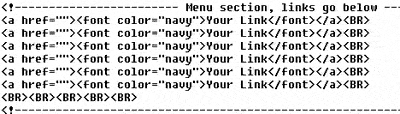
Between these comment tags is the code for the menu. This consists of font (text) sizes, colors, and the linking url. You can place images on the menu side, but they must follow a particular width to avoid graphic misalignments.
Content area

Between these comment tags you add your own page content.
Things to note
Some of the templates come with extra areas, such as extra links, etc. They are self explanatory when you are viewing the source code.
Any place you see in a templates source code that has comment tags means that something goes in that space (what goes there is noted in the comment tags).
