Step 4 - Setting up the menu
Find the menu comment tags in your source code. You will see a block of links in your source code that all say "your link". Here is what this should look like:
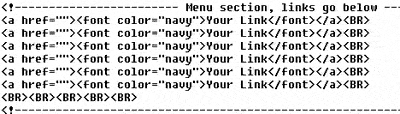
Steps to setup your links:
1) In between the quotes of the <a href="" , type the pages name that you wish to link to. This is the part of the link that takes a person clicking on it somewhere, not the part that the user sees. Be sure to type the FULL file name, including the .html extension! If the page you wish to link to is in any other directory than the main directory of the template, you will have to type that in also.
2) Adjust the link color by typing in the appropriate hex. To find the color you want, click here to view a color/hex chart.
3) Where it says "Your Link", type in how you want the link to appear in the menu. Such as "About us", or "Our Products", etc. This is what the user sees and clicks on the page.
4) The <br /> is a carriage return, or vertical space. Use/Delete these when needed.
5) Always remember Ctrl+C and Ctrl+V is copy/paste! This really comes in handy.
6) You can place images on the menu side, but they must be a particular width to avoid graphic misalignments.
Setting up button type templates
The pages that use buttons have preformatted code that you can copy and paste to make more buttons. Just type the url you wish it to link to, and the linking text (what you wish it to say) to complete the button.
If you have a template with premade buttons, you need to insert the image of the one you want into your code, using the format for an image as show below.
<img src="Image name" width="The width of the image" height="the height" border="0">
